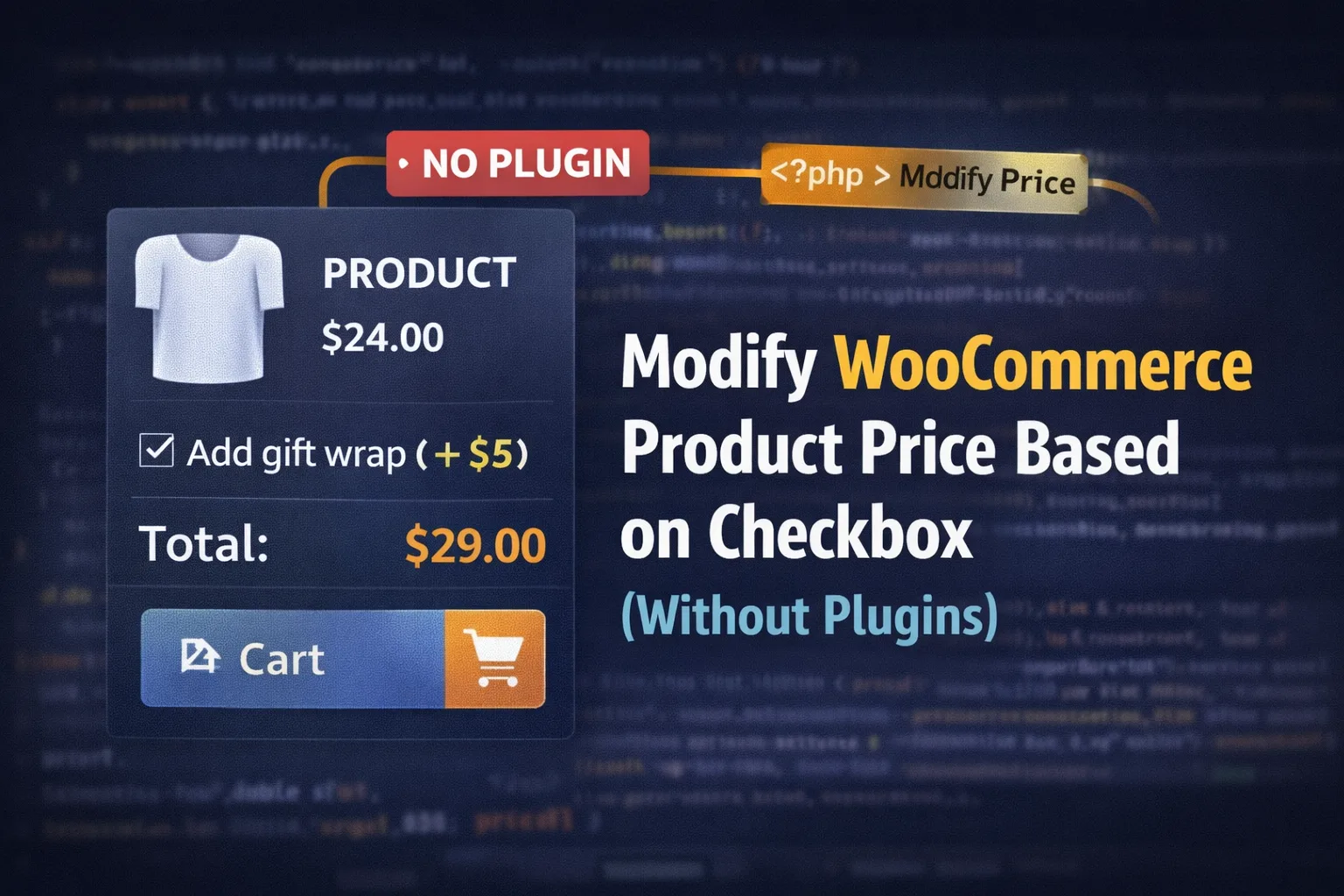
Add a checkbox field on the product page, store its value in cart item data, then update the cart item price using woocommerce_before_calculate_totals. This ensures the updated price is used for cart totals and checkout.
Sometimes you don’t need a full “product add-ons” plugin just to charge a little extra for something simple—like gift wrap, priority processing, or extended warranty.
In this tutorial, you’ll build a checkbox on the single product page that, when checked:
- Adds a fixed extra amount (example: +$5.00)
- Updates the cart line item price (the part that actually matters for totals)
- Shows the selection on cart/checkout
- Saves it to the order (so it appears in admin + emails)
No plugins. Just WooCommerce hooks + a little JS.
What we’re building (and how WooCommerce pricing really works)
WooCommerce pricing has two separate realities:
- Displayed product price on the product page (mostly cosmetic)
- Cart item price used for totals (the real billing)
If you only change the displayed price with JavaScript, checkout totals will still be wrong.
So we’ll do both:
- Frontend (JS): Show a “live” updated price when checkbox is toggled
- Backend (PHP): Add data to cart item + adjust price in
woocommerce_before_calculate_totals
WooCommerce’s hook system is designed for this kind of customization.
Step 0 — Decide your add-on amount (and where it should apply)
In this example, we’ll use:
- Checkbox label: “Add gift wrap (+$5)”
- Extra charge: 5
- Applies per quantity (if qty=2 and gift wrap checked → add $10 total)
If you want it to be “per line item” instead (only +$5 once no matter quantity), I’ll show where to change that.
Step 1 — Add a checkbox to the single product page
Add this to your child theme functions.php (or a small custom plugin).
/**
 * 1) Display checkbox on single product page.
 */
add_action( 'woocommerce_before_add_to_cart_button', function() {
	// Optional: only show on simple products
	global $product;
	if ( ! $product || ! $product->is_type('simple') ) {
		return;
	}

	woocommerce_form_field( 'bb_addon_giftwrap', [
		'type'  => 'checkbox',
		'class' => [ 'form-row-wide' ],
		'label' => 'Add gift wrap (+$5)',
	], '' );
});
This outputs a real WooCommerce field (so it’s consistent with theme styles).
Step 2 — Validate (optional but recommended)
If you ever make the checkbox required (or conditional), validation belongs here.
For a normal optional checkbox, validation can be minimal—but here’s a pattern you can reuse:
/**
 * 2) Validate add-on field before add to cart.
 */
add_filter( 'woocommerce_add_to_cart_validation', function( $passed, $product_id, $qty ) {

	// Example: if you ever need to require it, you’d check and add a notice here.
	// if ( empty($_POST['bb_addon_giftwrap']) ) {
	//     wc_add_notice( 'Please confirm gift wrap selection.', 'error' );
	//     return false;
	// }

	return $passed;
}, 10, 3 );
Step 3 — Store checkbox value in cart item data
When the user adds to cart, we need to attach a flag to that cart item.
WooCommerce provides woocommerce_add_cart_item_data specifically for this.
/**
 * 3) Save checkbox selection into cart item data.
 */
add_filter( 'woocommerce_add_cart_item_data', function( $cart_item_data, $product_id, $variation_id, $quantity ) {

	$checked = ! empty( $_POST['bb_addon_giftwrap'] );

	if ( $checked ) {
		$cart_item_data['bb_addon_giftwrap'] = true;

		/**
		 * IMPORTANT:
		 * This makes the cart item unique so Woo doesn't merge
		 * two items where one has giftwrap and the other doesn't.
		 */
		$cart_item_data['bb_addon_unique_key'] = md5( microtime(true) . rand() );
	}

	return $cart_item_data;
}, 10, 4 );
Why the unique key matters: without it, WooCommerce may merge items and you’ll lose per-item options.
Step 4 — Display the selection on Cart + Checkout
This makes the UX clear and reduces refunds/support tickets.
/**
 * 4) Show add-on in cart and checkout line item data.
 */
add_filter( 'woocommerce_get_item_data', function( $item_data, $cart_item ) {

	if ( ! empty( $cart_item['bb_addon_giftwrap'] ) ) {
		$item_data[] = [
			'key'   => 'Gift wrap',
			'value' => 'Yes (+$5)',
		];
	}

	return $item_data;
}, 10, 2 );
Step 5 — Adjust the cart item price (this is the real pricing change)
This is the most important part.
We’ll use woocommerce_before_calculate_totals to modify the price of the product inside the cart object (so totals update properly). This is a standard WooCommerce approach for cart-level price overrides.
/**
 * 5) Increase cart item price when checkbox is selected.
 */
add_action( 'woocommerce_before_calculate_totals', function( $cart ) {

	if ( is_admin() && ! defined( 'DOING_AJAX' ) ) {
		return;
	}

	if ( ! $cart || $cart->is_empty() ) {
		return;
	}

	$extra = 5.0; // +$5

	foreach ( $cart->get_cart() as $cart_item_key => $cart_item ) {

		if ( empty( $cart_item['bb_addon_giftwrap'] ) ) {
			continue;
		}

		// Base price (current product price in cart context)
		$base_price = (float) $cart_item['data']->get_price();

		/**
		 * Prevent double-adding the extra fee:
		 * WooCommerce may run calculate_totals multiple times.
		 */
		if ( empty( $cart_item['bb_addon_price_applied'] ) ) {
			$new_price = $base_price + $extra;

			$cart_item['data']->set_price( $new_price );
			$cart_item['bb_addon_price_applied'] = true;

			// Persist the flag back into cart contents
			$cart->cart_contents[ $cart_item_key ] = $cart_item;
		}
	}

}, 100 );
Want “+ $5 once per line item” (not per quantity)?
This method is already per unit, because Woo’s price is per unit.
If you want + $5 once total per line, don’t change the unit price—instead add a fee via woocommerce_cart_calculate_fees. (Different pattern; tell me and I’ll drop that version.)
Step 6 — Save the selection to the order (so it appears in admin + emails)
/**
 * 6) Save add-on selection to order item meta.
 */
add_action( 'woocommerce_checkout_create_order_line_item', function( $item, $cart_item_key, $values, $order ) {

	if ( ! empty( $values['bb_addon_giftwrap'] ) ) {
		$item->add_meta_data( 'Gift wrap', 'Yes (+$5)', true );
	}

}, 10, 4 );
Now the store owner sees it in the backend, and it can also appear in emails depending on email template settings.
Step 7 — Optional: Update the displayed price instantly on the product page (JS)
Again: JS is not the pricing engine—it’s just to improve UX.
This script reads the displayed price on the product page, adds $5 when checked, and swaps the visible text.
Add this (still inside functions.php):
/**
 * 7) Frontend script to update displayed price on toggle (optional UX).
 */
add_action( 'wp_footer', function() {
	if ( ! is_product() ) return;
	?>
	<script>
	(function(){
		const checkbox = document.querySelector('input[name="bb_addon_giftwrap"]');
		const priceEl  = document.querySelector('.summary .price .woocommerce-Price-amount');
		if(!checkbox || !priceEl) return;

		const extra = 5;

		// Try to parse the first visible price amount
		const getNumber = (text) => {
			// remove currency symbols and commas
			const num = text.replace(/[^\d.]/g,'');
			return parseFloat(num || '0');
		};

		// Store original numeric price once
		const originalText = priceEl.textContent;
		const originalVal  = getNumber(originalText);

		const formatLikeOriginal = (val) => {
			// simple formatting; your theme/currency may differ
			const fixed = val.toFixed(2);
			return originalText.replace(getNumber(originalText).toFixed(2), fixed);
		};

		const update = () => {
			if(checkbox.checked){
				priceEl.textContent = formatLikeOriginal(originalVal + extra);
			}else{
				priceEl.textContent = originalText;
			}
		};

		checkbox.addEventListener('change', update);
	})();
	</script>
	<?php
});
If your theme has variable prices, sale prices, or multiple .woocommerce-Price-amount nodes, we’ll adjust selectors—this is intentionally “starter safe.”
Common Issues (and how to fix them)
1) “Price keeps increasing every refresh”
That’s the classic calculate_totals running multiple times. WooCommerce can re-run totals during AJAX updates, checkout changes, etc. There’s even discussion around how often totals can run.
Fix: we used the bb_addon_price_applied flag.
2) “Checkbox selection doesn’t show on checkout”
Make sure Step 3 stored the flag in cart item data and Step 4 prints it using woocommerce_get_item_data.
3) “Cart merges items and loses one selection”
The unique key in Step 3 prevents merging. Keep it.
4) “My checkout is slow / stuck loading”
When you add custom cart logic, checkout performance matters. If you’re seeing delays, cross-check your AJAX/caching/session behavior too:
5) “Cart empties after refresh”
That’s usually caching/cookie/session issues—not this pricing pattern. Still, here’s our internal guide on woocommerce cart empty after refresh.