Because caching only helps static pages. WooCommerce relies heavily on AJAX, sessions, cron jobs, and database queries, which bypass cache and still hit your server on every visit.
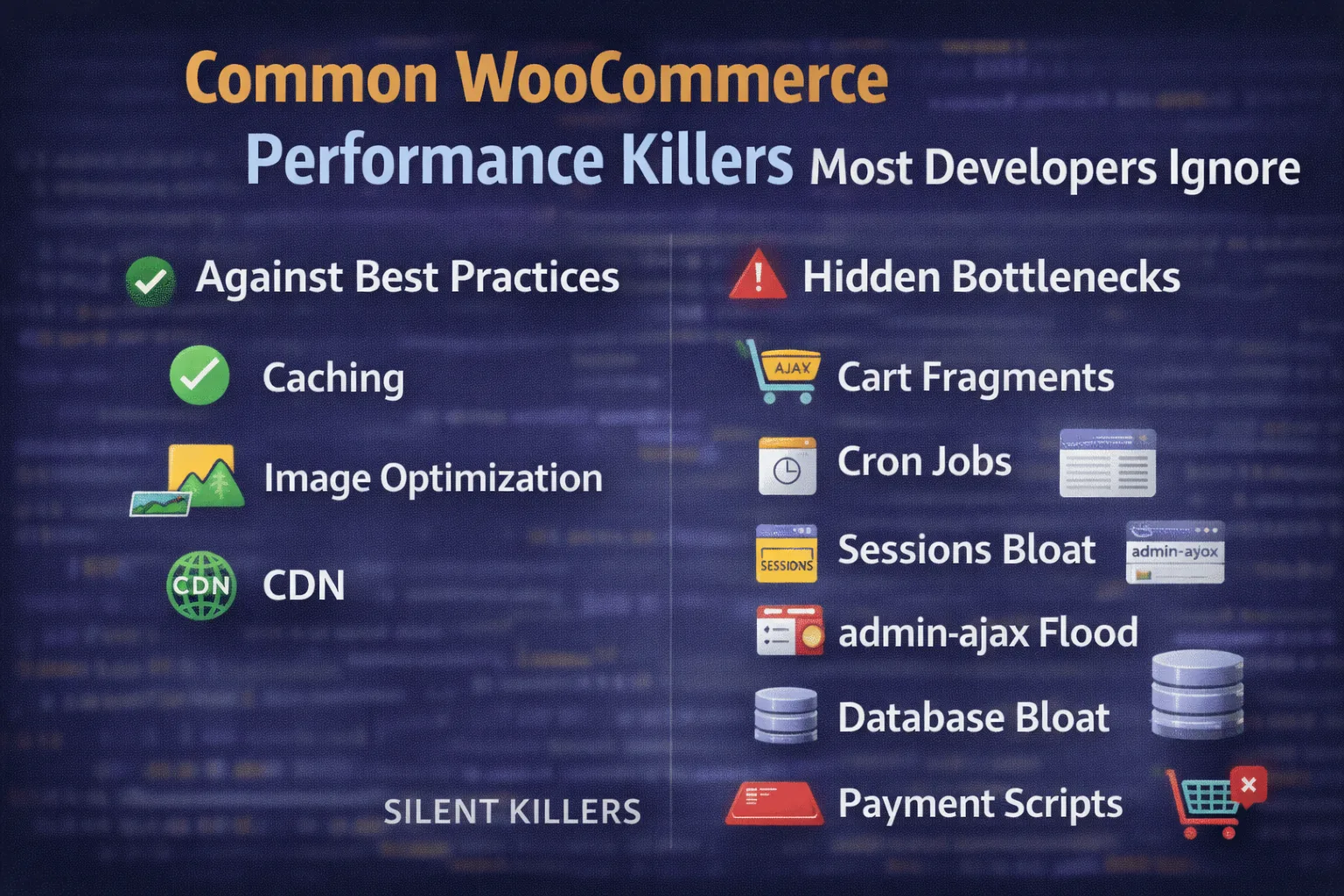
Most developers think WooCommerce performance is about image compression, CDNs, and caching plugins.
Those help — but they’re rarely the real problem.
If you’ve ever optimized a store “properly” and it still feels slow, unstable, or randomly spikes CPU, it’s usually because of backend behaviors that WooCommerce enables by default.
These are the performance killers almost nobody talks about.
Let’s break them down.
(And yes — most of these stack together.)
Why WooCommerce Feels Slow Even After “Optimization”
WooCommerce is highly dynamic. It relies on:
- AJAX
- sessions
- cron jobs
- background schedulers
- database-heavy queries
Meanwhile, WordPress was originally designed for mostly static content.
That mismatch is why traditional speed tactics don’t fix deeper WooCommerce issues.
You don’t just optimize pages — you optimize behavior.
1. Cart Fragments (AJAX You Didn’t Ask For)
Cart fragments are one of the biggest silent performance killers.
WooCommerce injects background AJAX requests on every page to keep the mini cart updated:
wc-ajax=get_refreshed_fragmentsProblems:
- Bypasses page cache
- Hits PHP + database every time
- Multiplies with traffic
- Runs even when the cart is empty
On busy stores, this alone can destroy CPU.
This is why selectively disabling cart fragments is such a massive win:
WooCommerce even documents how fragments should be handled carefully in production:
2. WP-Cron + Action Scheduler Backlog
WooCommerce relies heavily on WordPress’s pseudo-cron system.
Every page load can trigger:
- expired cart cleanup
- email queues
- order maintenance
- subscription jobs
- background actions
On top of that, WooCommerce uses Action Scheduler, which stores jobs in the database.
If actions pile up, WooCommerce tries to “catch up” — often causing sudden CPU spikes.
Official Action Scheduler docs:
WordPress cron overview:
When this goes unchecked, it becomes a major cause of server overload — covered in detail here:
3. WooCommerce Sessions Table Explosion
WooCommerce stores cart/session data in:
wp_woocommerce_sessionsEvery visitor gets a session — even logged-out users.
On traffic-heavy sites:
- sessions grow rapidly
- cleanup doesn’t always run correctly
- queries slow down
- checkout becomes unstable
This table quietly becomes enormous.
Most developers never check it.
When checkout starts behaving oddly or carts reset randomly, this is often involved:
4. admin-ajax.php Background Traffic
WooCommerce still uses WordPress AJAX extensively.
Between:
- cart fragments
- checkout updates
- custom theme features
- plugins
admin-ajax.php often becomes a high-volume endpoint.
Security plugins and hosts sometimes start blocking or throttling it, leading to partial failures:
Indexes + cleanup do.AJAX behaving differently in admin vs frontend is another symptom:
This creates a perfect storm:
AJAX fails → checkout freezes → users abandon carts.
5. Database Bloat Most Developers Never Look At
WooCommerce writes a lot of metadata.
Common offenders:
wp_postmetawp_usermetawp_options- transients
- scheduled action tables
Over time, these grow unbounded.
You end up with:
- slow admin
- delayed queries
- timeouts during checkout
- random performance drops
Caching doesn’t fix this.
Indexes + cleanup do.
6. Expired Transients That Never Clear
WooCommerce stores cached data as transients in the database.
If cron is broken (see earlier), expired transients remain forever.
Result:
- bloated options table
- slower reads
- higher memory usage
This one is invisible unless you inspect your DB.
7. Heavy Payment Gateway Scripts Loading Everywhere
Many gateways load JavaScript on every page:
- Stripe
- PayPal
- Klarna
- Affirm
Even on blog posts.
That adds:
- extra network requests
- JS execution time
- potential conflicts
Checkout issues often originate here:
WooCommerce officially recommends isolating checkout behavior during testing:
8. Object Cache / Redis Misconfiguration
Object caching can help WooCommerce — or completely break it.
Common problems:
- stale cart objects
- sessions cached incorrectly
- checkout totals not updating
- ghost cart items
Redis/Memcached must be configured carefully with WooCommerce.
Otherwise, performance becomes inconsistent instead of faster.
9. Cached Checkout Pages (Catastrophic but Common)
Checkout relies on nonces and sessions.
If checkout is cached:
- nonces expire
- AJAX fails
- submit freezes
- orders don’t create
This alone causes huge revenue loss.
WooCommerce explicitly states checkout/cart must never be page cached.
10. Hosting CPU Throttling (Silent Killer)
Even with perfect code, cheap hosting kills WooCommerce.
Symptoms:
- random slowness
- checkout delays
- emails failing
- AJAX timeouts
Not because your code is bad — because the host silently limits CPU.
This shows up as “performance problems” but is actually infrastructure.
Email failures often share the same root cause:
Performance Fix Summary (Real-World Order)
If you’re optimizing WooCommerce seriously:
- Disable cart fragments selectively
- Replace WP-Cron with real server cron
- Monitor Action Scheduler backlog
- Clean WooCommerce sessions
- Inspect AJAX endpoints
- Remove checkout from cache
- Audit database bloat
- Limit gateway scripts
- Validate object cache behavior
- Upgrade hosting if CPU-bound
Not glamorous — but extremely effective.
Why Developers Miss These Issues
Because:
- they don’t appear on Lighthouse
- caching hides symptoms temporarily
- problems scale with traffic
- WooCommerce fails silently
Performance problems aren’t always visual.
They’re architectural.
Need Help Diagnosing Your Store?
If you’re dealing with unexplained slowdowns, checkout failures, or AJAX weirdness, you can reach out here: