How to Fix “WordPress Critical Error” (Step-by-Step Guide)
If your WordPress site suddenly crashes and shows:
“There has been a critical error on this website”
When a critical error happens, it doesn’t just stop your site – it interrupts your workflow. You might be trying to update a plugin, publish a post, or make a small design change when your site suddenly goes white or shows the “critical error” message. It feels like your website vanished or that something serious broke, even though most of the time nothing is permanently damaged. This fear often leads people to panic, think they lost content, or assume the hosting is at fault – but the issue is usually isolated to one piece of code.
you’re not alone – and more importantly, your site is usually recoverable.
This error doesn’t tell you much, which is frustrating. But under the hood, it’s almost always caused by a PHP-level failure – typically a plugin, theme, or server misconfiguration.
In this guide, I’ll walk you through how I actually debug and fix this issue in real projects, step by step.
“Something broke badly, and I can’t continue running safely.”
Instead of showing a messy PHP error to visitors, WordPress hides it and displays this generic message.
Common scenarios:
After installing or updating a plugin
After switching themes
After a WordPress update
When server settings change
What Causes This Error?
From real-world debugging, these are the most common causes:
Plugin conflicts (most common)
Theme issues (especially custom code)
PHP version mismatch (very common on cheap hosting)
Memory limit exhaustion
Corrupted WordPress core files
Fatal PHP errors in custom code
The key is: you need to reveal the actual error first
How to Fix WordPress Critical Error (Step-by-Step)
Follow these in order. Don’t skip ahead.
1. Check Your Email (Recovery Mode)
WordPress automatically sends this email when it detects the error so you don’t have to guess what caused it. Think of it like a diagnostic report: instead of looking blindly for the problem, WordPress tells you which file or plugin triggered the issue and gives you a special login link to access the dashboard without being blocked by the crash. This is often the fastest and easiest way to jump straight into fixing the cause.
Check for a subject like:
“Your Site is Experiencing a Technical Issue”
This email includes:
the plugin/theme causing the issue
a special recovery login link
If you have this – use it. It’s the fastest fix.
2. Enable Debug Mode (MOST IMPORTANT STEP)
Right now, WordPress is hiding the real error.
We need to force it to show us what’s actually broken.
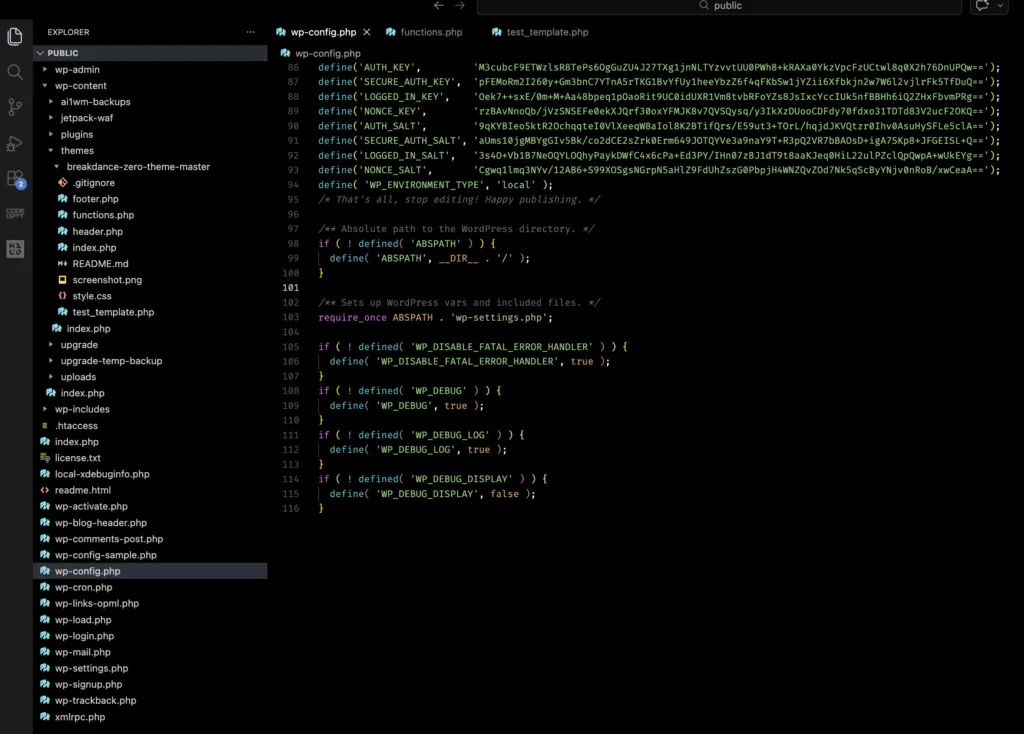
Open your wp-config.php file (you will find it in the root of your wordpress installation)
WP_DEBUG: turns on the debug mode so WordPress stops hiding errors.
WP_DEBUG_LOG: saves errors into a log file (debug.log), which is much easier to analyze later.
WP_DEBUG_DISPLAY: shows the errors on the screen (good for immediate feedback). Together, this lets you see the real error message, instead of the generic “critical error.” When you see something like “Fatal error: Call to undefined function…”, you know exactly which file, line, or plugin caused the issue rather than guessing.
What this does:
shows the real PHP error on screen
logs errors inside /wp-content/debug.log
Now refresh your website.
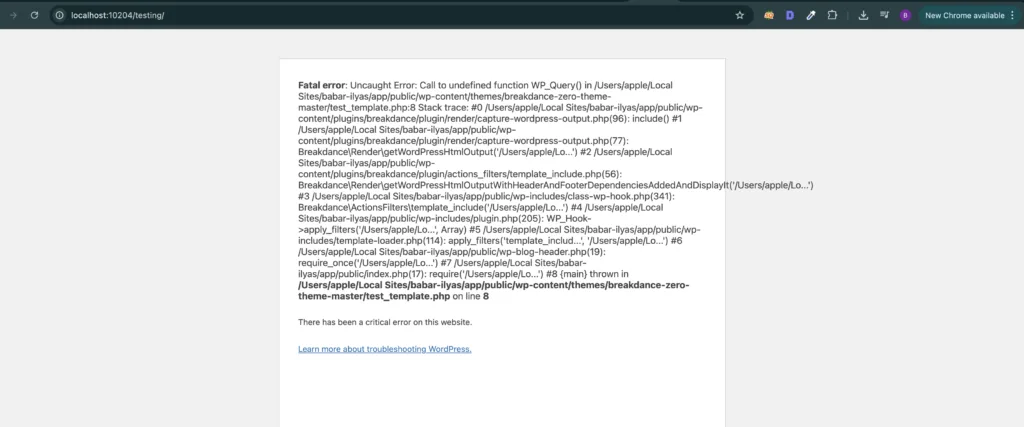
You should see something like:
“Fatal error: Call to undefined function…”
“Memory exhausted…”
“Plugin XYZ caused error…”
This is your real clue.
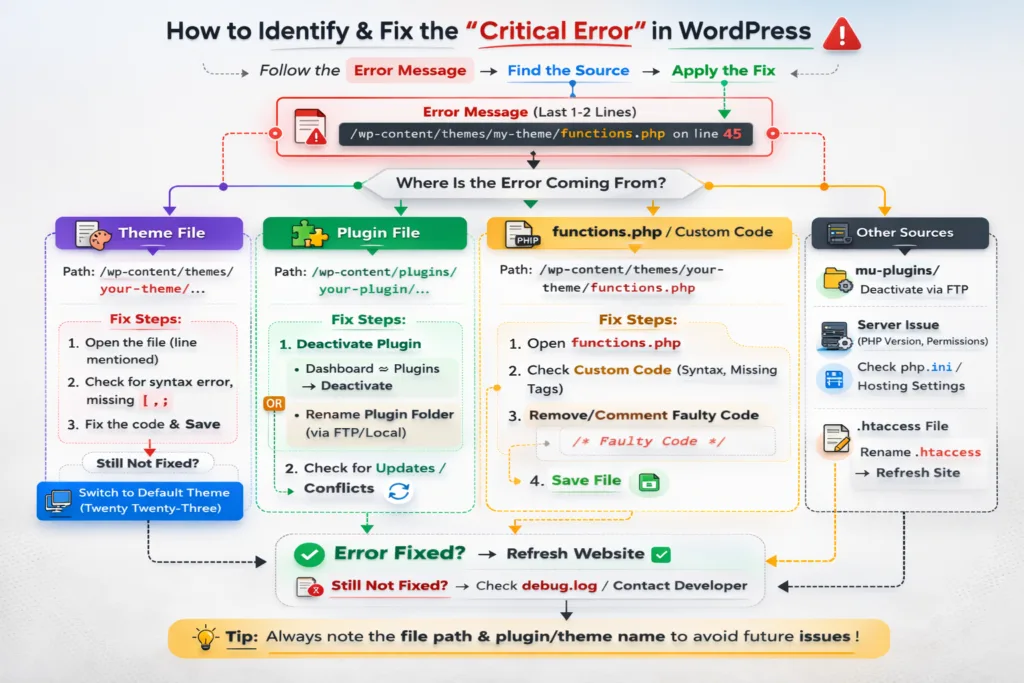
In most cases, this screen will indicate exactly where the problem is originating. By carefully reading the last one or two lines of the error message, you can usually identify the source of the issue. The error message will often point to a specific file and line number, which is your starting point for troubleshooting.
Here’s how to interpret it:
Theme-related errors: If the error originates from a theme file, it is often a custom or hand-coded theme rather than a standard one downloaded from the repository. These errors usually happen when the theme’s PHP code has a syntax mistake, missing function, or incompatibility with your WordPress version. To fix it, you’ll need to open the file mentioned in the error and correct the issue. If you’re not comfortable editing PHP code, you can temporarily switch to a default WordPress theme like Twenty Twenty-Three to restore access while you investigate.
Plugin-related errors: If the error comes from a plugin file, the simplest solution is to deactivate that plugin. You can do this via the WordPress dashboard if accessible, or by renaming the plugin folder via FTP or Local by Flywheel to force WordPress to deactivate it. Plugin errors often occur due to compatibility issues with your WordPress version, other plugins, or your PHP version.
Other potential sources: Rarely, errors may originate from custom code added via functions.php, mu-plugins, or server-level misconfigurations. In such cases, the error message will usually point directly to the file causing the problem.
Once you’ve identified and addressed the source of the error, the critical error screen may disappear.
Tip: Always take note of which plugin or theme caused the error — this will help you avoid similar issues in the future and makes debugging much faster.
If the problem persists even after addressing the indicated file or plugin, keep following the steps in this guide below to continue troubleshooting.
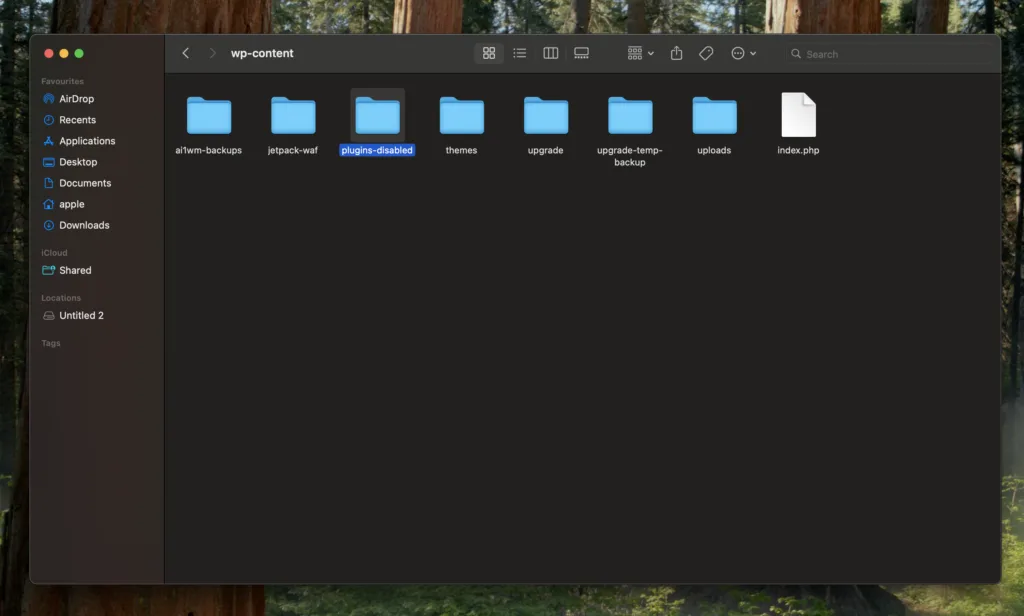
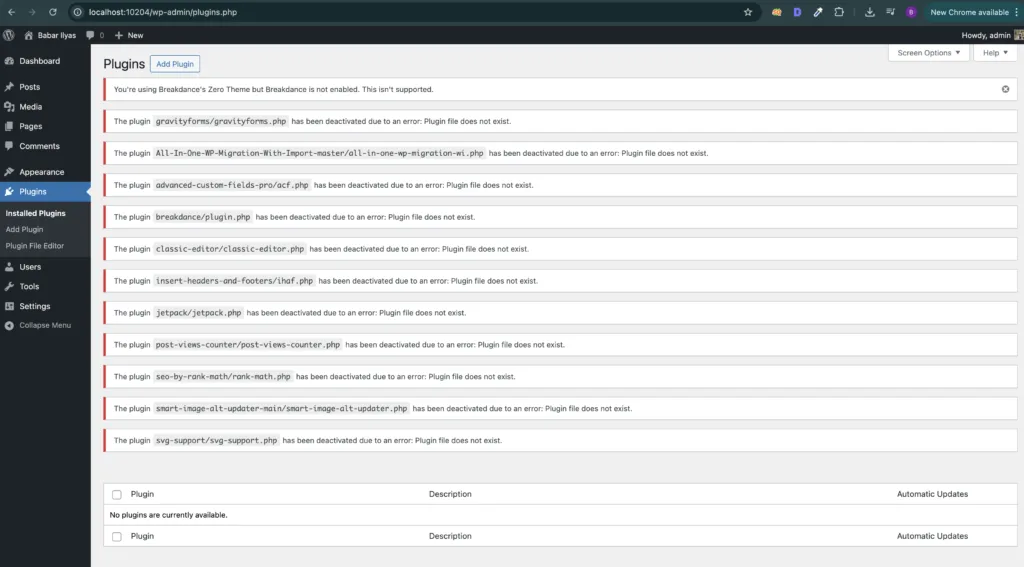
3. Disable All Plugins (Fastest Fix Method)
If you can’t access wp-admin:
Use FTP or File Manager
Go to:
wp-content/plugins/
Rename the folder to:
plugins-disabled
This disables ALL plugins instantly.
What happens next:
Reload your site
If it works → plugin conflict confirmed
Now:
Rename folder back to plugins
Then activate plugins one by one to find the culprit.
Plugins are third‑party extensions – and not all of them play nicely with each other or the rest of WordPress. If two plugins try to modify the same parts of your site, or if one plugin uses outdated code, WordPress might not know how to handle the conflict. Disabling plugins basically tells WordPress: “Let’s go back to a basic state and see if the site loads.” If it does, you know you’re dealing with a plugin conflict.
Once the site loads again, reactivating plugins one by one helps you find the exact plugin that caused the problem – rather than guessing blindly or deactivating everything forever.
4. Switch to a Default Theme
If plugins are not the issue, your theme might be.
Via FTP:
Go to:
wp-content/themes/
Rename your active theme folder.
WordPress will automatically switch to a default theme like:
Twenty Twenty-Four
If site loads → your theme is broken
Themes control how your site looks and runs. A theme with incorrect or outdated code can trigger a fatal error just like a plugin can. Sometimes a theme may depend on specific WordPress functions or a newer PHP version – and if those aren’t available or compatible, WordPress cannot render your site. Switching to a default theme (like Twenty Twenty‑Four) strips everything back to the basics, isolating whether your current theme is the cause.
5. Increase PHP Memory Limit
This error often happens when your site runs out of memory.
Add this to wp-config.php:
define('WP_MEMORY_LIMIT', '256M');
Especially important for:
WooCommerce sites
heavy plugins
large databases
Your server gives WordPress a fixed pool of memory (think of it like a workspace). If a plugin or theme needs more space than what’s allocated, WordPress simply can’t continue, leading to a critical error. This is common on cheap hosting where memory limits are low. Increasing the memory limit gives WordPress more room to work and often resolves errors that appear when resource‑heavy plugins or processes run.
6. Check PHP Version Compatibility
A very common issue.
Some plugins/themes:
break on PHP 8
or require PHP 8+
What to do:
Go to hosting panel
switch between:
PHP 7.4
PHP 8.0 / 8.1
Test after each change.
PHP is the language WordPress and most plugins are built on. Each version brings improvements, but also breaks things that rely on old syntax or features. If a plugin was built for an older PHP release, and your server runs a newer one (or vice‑versa), functions may no longer work – and WordPress will crash. Testing different versions helps isolate this type of incompatibility.
7. Check the Debug Log (Advanced but Powerful)
If you enabled debug logging earlier, go to:
/wp-content/debug.log
Example log:
PHP Fatal error: Uncaught Error: Call to undefined function xyz()
What this tells you:
exact file causing issue
exact line number
exact function that failed
This is how developers fix issues fast.
The debug log doesn’t just list errors – it’s a roadmap. For example:
It tells you which file ran into trouble.
It shows the line number where the code failed.
It often shows what function caused it. This means you’re not guessing – you’re troubleshooting with data, just like a technician.
8. Reinstall WordPress Core Files
Sometimes files get corrupted.
Fix:
download fresh WordPress
upload:
/wp-admin/
/wp-includes/
Do NOT overwrite wp-content
9. Check Custom Code (If You Added Any)
If you recently added:
custom PHP
code snippets
functions.php edits
That’s a likely cause.
Fix:
remove recent code
test again
How to Prevent This Error in Future
From experience, here’s what actually works:
Always update plugins one by one
Avoid nulled / cracked plugins
Use staging before major changes
Keep regular backups
Use reliable hosting
Updating everything at once (plugins, themes, WordPress core) is tempting, but if something breaks, you won’t know which update caused the problem. Updating one thing at a time lets you test after each update, so you catch issues immediately instead of chasing them later.
When You Should Get Professional Help
Sometimes the issue goes deeper.
You should consider help if:
site is completely down
no access to admin or FTP
debug logs are confusing
issue keeps coming back
In these cases, proper debugging saves hours (and stress).
Final Thoughts
The “WordPress Critical Error” looks scary, but it’s usually:
a single broken piece causing a chain reaction
Once you identify the source – fixing it is straightforward.
If you follow the steps above methodically, you’ll be able to recover most WordPress sites without panic.
FAQs - WordPress Critical Error
This message means WordPress encountered a fatal PHP error and stopped running to prevent further damage. It usually happens due to a plugin conflict, theme issue, or server misconfiguration. The actual error is hidden by default, which is why enabling debug mode is important.
The fastest way is to:
Disable all plugins (rename the plugins folder)
Switch to a default theme
Enable debug mode to see the exact error
In most cases, one of these steps immediately reveals the cause.
Yes – this is the most common cause.
A plugin can trigger a critical error if:
it conflicts with another plugin
it’s not compatible with your PHP version
it has buggy or outdated code
Disabling plugins one by one usually identifies the problem.
You can fix it using FTP or your hosting file manager:
rename the /wp-content/plugins/ folder
rename your active theme folder
edit wp-config.php to enable debug mode
These steps don’t require dashboard access and are often enough to restore the site.
Once debug mode is enabled, WordPress logs errors in:
/wp-content/debug.log
You can also see errors directly on the screen if WP_DEBUG_DISPLAY is enabled. This file usually tells you exactly what’s broken.
Yes, very often.
If your server is running a PHP version that your plugins or theme don’t support, it can cause a fatal error. Switching to a compatible version (like PHP 8.0 or 8.1) can fix the issue.
No – in most cases, your data is safe.
This error only stops the site from loading. Your database, posts, and files are still there. Once the issue is fixed, everything comes back as normal.
Yes.
If your site exceeds the PHP memory limit, WordPress can crash and show a critical error. Increasing the memory limit in wp-config.php often resolves this.
Updates can introduce:
plugin conflicts
incompatible code
PHP version issues
This is why it’s recommended to update plugins and themes one at a time and test after each update.
To reduce the chances:
avoid installing too many plugins
keep everything updated carefully
use staging before major changes
maintain regular backups
choose reliable hosting
Meet the Author
Babar khan
Babar Ilyas is a full-stack WordPress developer and SEO strategist focused on building fast, functional, and search-optimized websites. With years of hands-on experience, he shares real-world fixes and dev workflows that actually work.
When he’s not deep in code, he’s dropping fresh blog posts and tracking what Google’s up to — one ranking at a time.