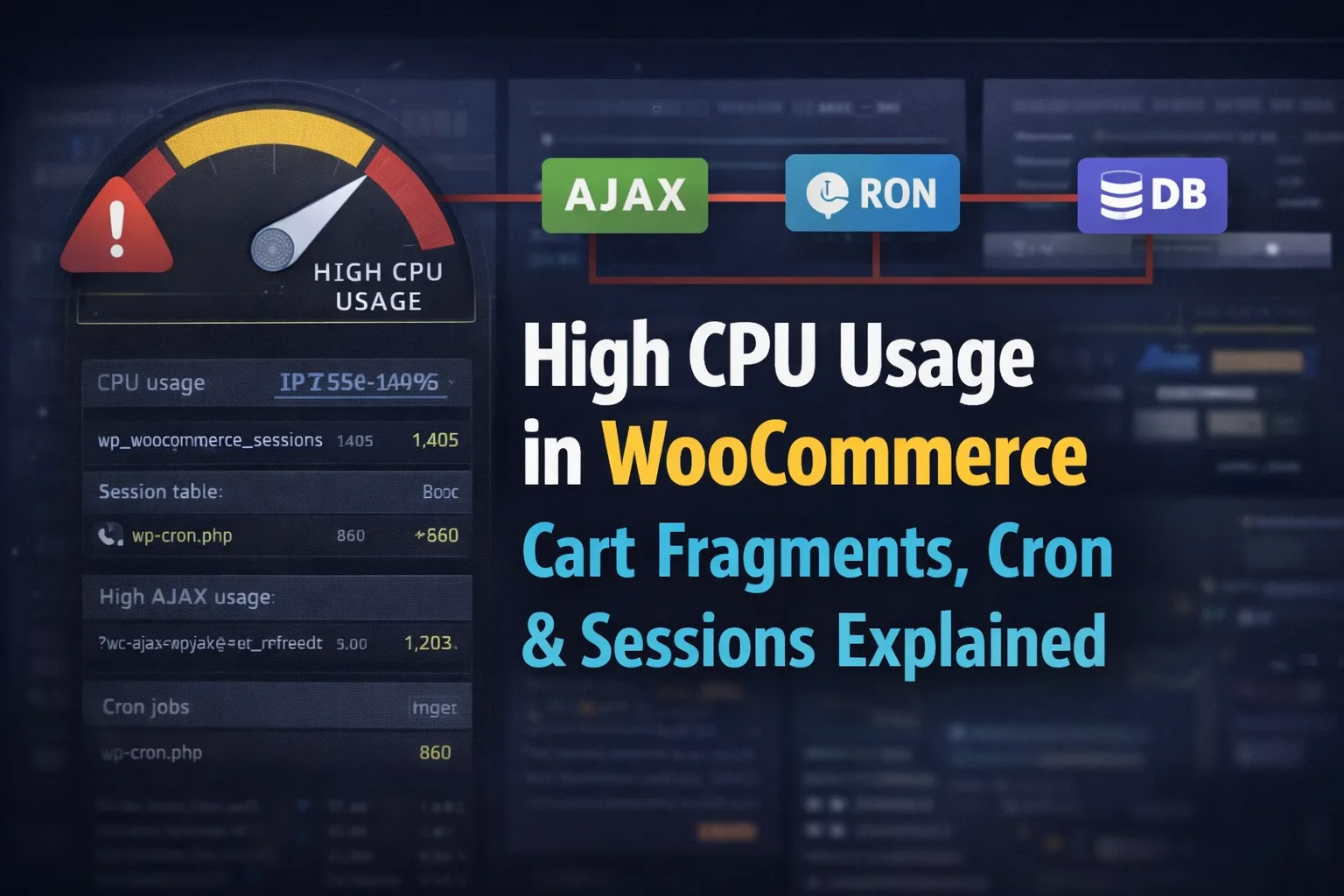
WooCommerce is highly dynamic and runs background processes like cart fragments, cron jobs, and session handling on many page loads. When traffic increases, these processes stack together and can overwhelm server CPU resources.
If your hosting provider is warning you about high CPU usage, slow response times, or temporary throttling, WooCommerce is often at the center of the problem.
The tricky part? CPU spikes in WooCommerce rarely come from one single issue. In most cases, they’re caused by a combination of cart fragments, background cron jobs, and session handling, all stacking together under real traffic.
In this guide, we’ll break down exactly why WooCommerce causes high CPU usage, how to identify the real culprit, and how these issues connect behind the scenes—so you can fix the problem properly instead of guessing.
What High CPU Usage Means in WooCommerce (Plain English)
High CPU usage means your server is spending too much processing power handling requests. When this happens, you’ll usually see:
- Slow frontend load times
- Sluggish WooCommerce admin
- Checkout delays or timeouts
- Hosting warnings, throttling, or even temporary suspension
On WooCommerce sites, CPU usage often spikes before memory or disk limits do—especially on shared or mid-tier VPS hosting.
The reason is simple: WooCommerce performs a lot of dynamic operations, even on pages that look static.
How to Confirm WooCommerce Is the CPU Culprit
Before fixing anything, you need to confirm WooCommerce is actually responsible.
Common signs include:
- CPU spikes when traffic increases, even without sales
- High request counts to:
wc-ajax=get_refreshed_fragmentswp-cron.php
- Large or constantly growing database tables like:
wp_woocommerce_sessionswp_actionscheduler_actions
Most hosts (Kinsta, WP Engine, Cloudways, cPanel-based hosts) will show these patterns clearly in CPU or request logs.
Once you see those names repeating, you’re in WooCommerce territory.
Cart Fragments: Small Script, Big CPU Cost
WooCommerce loads cart fragments to keep the cart count and mini cart updated using AJAX.
This triggers the request:
?wc-ajax=get_refreshed_fragmentsWhy Cart Fragments Spike CPU
- Loaded site-wide by default
- Fires AJAX requests even when the cart is empty
- Bypasses page caching
- Multiplies with traffic (100 visitors = 100 AJAX calls)
On high-traffic or cached sites, this creates a constant background load that never sleeps.
This is especially dangerous when:
- You’re running ads
- Bots are crawling the site
- Logged-out users are browsing content pages
👉 This is why selectively disabling cart fragments is one of the biggest CPU wins.
WooCommerce Cron Jobs and Scheduled Actions
WooCommerce relies heavily on WP-Cron, WordPress’s pseudo-cron system that runs on page loads.
On WooCommerce sites, this includes:
- Order cleanup
- Expired carts
- Email schedules
- Subscriptions (if used)
- Action Scheduler tasks
Why WP-Cron Causes CPU Spikes
- Runs during normal page requests
- Can fire multiple jobs at once
- Executes PHP + database operations together
- Scales poorly with traffic
The Action Scheduler system is the biggest offender here. When tasks pile up, WooCommerce tries to “catch up,” causing massive CPU spikes.
Common warning signs:
- Thousands of pending scheduled actions
- Repeated cron execution per minute
- CPU spikes even with low traffic
This is one of the most common causes of random CPU surges on WooCommerce stores.
WooCommerce Sessions and Database Pressure
WooCommerce stores cart and session data in the database table:
wp_woocommerce_sessionsEach active visitor creates a session—even logged-out users.
Why Sessions Increase CPU Usage
- Table grows rapidly on busy sites
- Old sessions don’t always clean up properly
- Large session tables slow down reads/writes
- Every cart or checkout action touches this table
On stores with traffic but low conversions, this table becomes a silent CPU killer.
If your sessions table has hundreds of thousands of rows, CPU spikes are almost guaranteed.
The Real Problem: These Issues Stack Together
Here’s what actually happens on struggling WooCommerce sites:
- Cart fragments fire AJAX requests
- Each request bypasses cache
- WP-Cron runs during those requests
- Scheduled actions execute
- Sessions table gets queried
- CPU usage spikes
Individually, these aren’t catastrophic.
Together, they overwhelm the server.
This is why disabling just one thing often doesn’t fully solve the issue—you have to understand how they interact.
How to Fix High CPU Usage in WooCommerce (High-Level)
This post focuses on explaining the problem, but the fixes usually involve:
- Disabling cart fragments selectively
- Optimizing or replacing WP-Cron with real cron
- Cleaning and managing WooCommerce sessions
- Reducing unnecessary AJAX calls
- Improving cache compatibility
Each of these deserves its own focused solution—which is why linking them properly matters.
How to Monitor CPU After Fixes
After applying optimizations, monitor:
- CPU usage over 24–72 hours
- AJAX request volume
- Cron execution frequency
- Database table growth
If CPU stabilizes while traffic stays the same, you’ve fixed the real issue—not just masked symptoms.
Why This Issue Keeps Coming Back
Many WooCommerce stores grow without adjusting server behavior. What worked at 1,000 visits/month breaks at 50,000 visits/month.
WooCommerce isn’t “bad”—it’s just dynamic by default, and dynamic systems need intentional optimization.
Understanding why CPU usage spikes is the difference between constant firefighting and long-term stability.