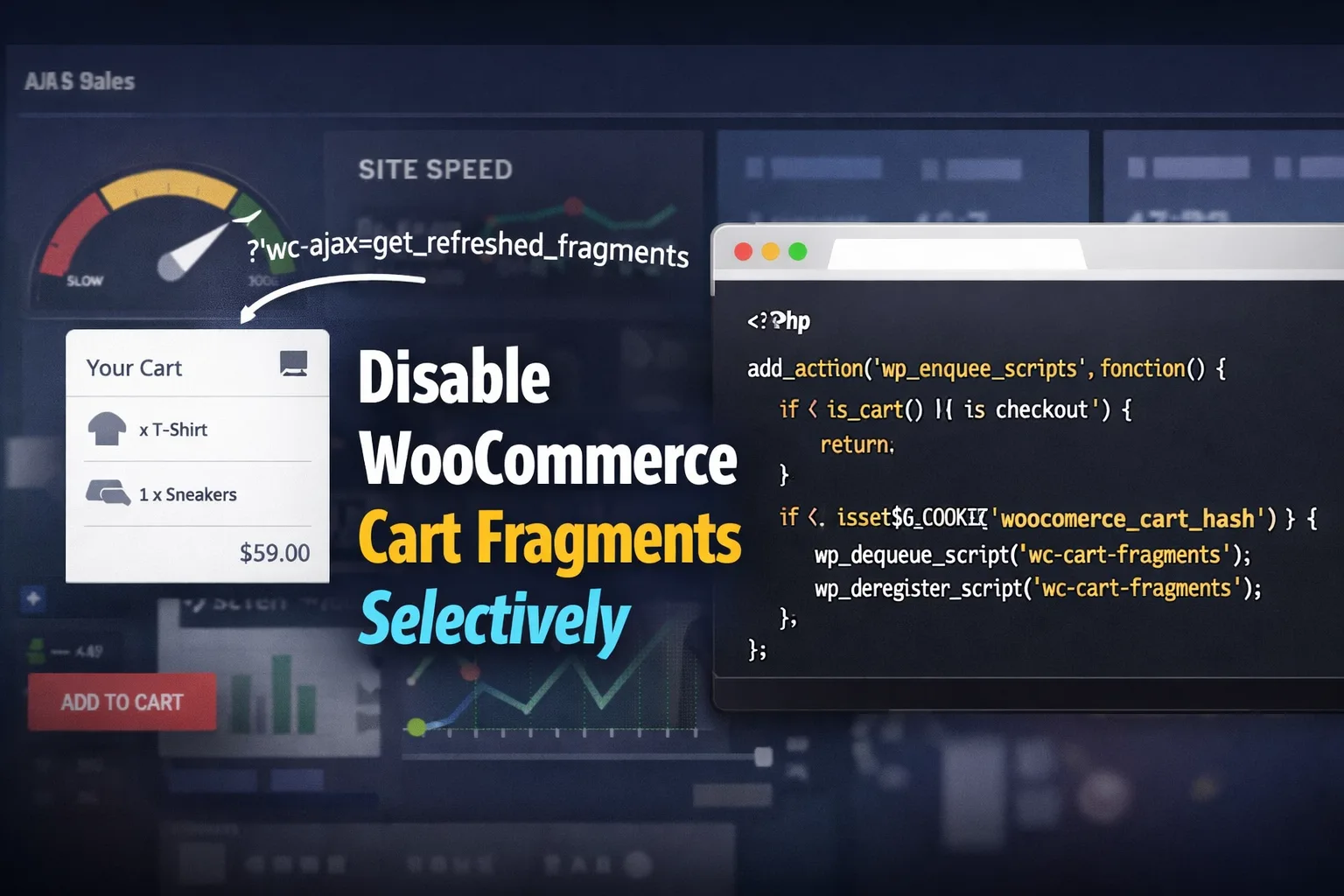
WooCommerce cart fragments update cart-related elements like the mini cart and cart count using AJAX. It sends a background request (wc-ajax=get_refreshed_fragments) to keep cart data in sync without reloading the page.
If you’ve ever opened DevTools and wondered why your WooCommerce site keeps firing background AJAX requests—even on simple content pages—the answer is usually cart fragments.
The problem isn’t cart fragments themselves. The problem is that WooCommerce loads them everywhere, even when the cart is empty and no real-time cart updates are needed. On cached or performance-focused stores, this can quietly kill speed scores and add unnecessary server load.
In this guide, you’ll learn how to disable WooCommerce cart fragments selectively, using safe, code-based rules that improve performance without breaking your mini cart or checkout flow.
What WooCommerce Cart Fragments Actually Do
WooCommerce uses a script called wc-cart-fragments.js to keep cart data in sync across pages.
It does this by triggering an AJAX request:
?wc-ajax=get_refreshed_fragmentsThis request returns updated HTML snippets (“fragments”) such as:
- Mini cart contents
- Cart item count
- Cart totals
That’s useful when:
- A customer adds a product via AJAX
- You want the header cart count to update instantly
- The user stays on the same page after adding to cart
But here’s the catch…
Why Cart Fragments Hurt Performance (Especially on Cached Sites)
By default, WooCommerce loads cart fragments on:
- Home pages
- Blog posts
- Static pages
- Landing pages
- Category archives
Even when:
- The cart is empty
- No mini cart is visible
- No AJAX add-to-cart is used
This causes:
- Extra AJAX calls on every page load
- Cache bypassing (many caching layers can’t fully cache fragment requests)
- Increased
admin-ajax.phporwc-ajaxtraffic - Slower TTFB and page load times
If you’ve ever optimized a WooCommerce site and still saw random AJAX requests in the Network tab, cart fragments are usually the culprit.
When You Should NOT Disable Cart Fragments
Before touching anything, it’s important to know when cart fragments are actually required.
You should keep cart fragments enabled if:
- Your header shows a live cart count
- You use a dropdown mini cart
- Customers add products via AJAX and stay on the same page
- Your theme relies on real-time cart updates
Blindly disabling fragments everywhere often leads to:
- Cart count not updating
- Mini cart showing stale data
- “Why doesn’t my cart update?” complaints
That’s why selective disabling is the correct approach.
The Best Strategy: Disable Cart Fragments Selectively
Instead of removing cart fragments globally, the safest strategy is:
- Disable cart fragments on pages that don’t need them
- Keep them enabled on Cart and Checkout
- Optionally keep them enabled only when the cart is not empty
This gives you:
- Faster browsing for new visitors
- Accurate cart data for shoppers
- Fewer background requests overall
Let’s walk through the best implementations.
Method 1 (Recommended): Disable Cart Fragments When Cart Is Empty
This is the most balanced solution for performance and UX.
WooCommerce sets a cookie called woocommerce_cart_hash when a cart contains items. We can use that to decide whether cart fragments are needed.
Code: Disable Fragments Unless Cart Has Items
Add this to your child theme’s functions.php or a small custom plugin:
<?php
/**
 * Disable WooCommerce cart fragments selectively.
 * Keeps fragments on cart/checkout and when cart has items.
 */
add_action('wp_enqueue_scripts', function () {

    // Ensure WooCommerce functions exist
    if ( ! function_exists('is_woocommerce') ) {
        return;
    }

    // Always keep fragments on cart and checkout
    if ( is_cart() || is_checkout() ) {
        return;
    }

    // Check if cart hash cookie exists (cart likely has items)
    $has_cart_hash = isset($_COOKIE['woocommerce_cart_hash']) && ! empty($_COOKIE['woocommerce_cart_hash']);

    // If cart has items, keep fragments enabled
    if ( $has_cart_hash ) {
        return;
    }

    // Otherwise, disable cart fragments
    wp_dequeue_script('wc-cart-fragments');
    wp_deregister_script('wc-cart-fragments');

}, 200);
Why This Works
- New visitors don’t load unnecessary AJAX requests
- Cached pages stay truly cached
- Active shoppers still get real-time cart updates
- Cart and checkout remain 100% safe
This approach mirrors how many performance plugins handle WooCommerce internally.
Method 2: Disable Cart Fragments Everywhere Except WooCommerce Pages
If you want a simpler rule-based approach (no cookie checks), this method works well.
Code: Disable Fragments on Non-Woo Pages
add_action('wp_enqueue_scripts', function () {

    if ( ! function_exists('is_woocommerce') ) {
        return;
    }

    // Keep fragments on WooCommerce-related pages
    if (
        is_woocommerce() ||
        is_cart() ||
        is_checkout() ||
        is_account_page()
    ) {
        return;
    }

    wp_dequeue_script('wc-cart-fragments');
    wp_deregister_script('wc-cart-fragments');

}, 200);
When to Use This
- Your header cart is only visible on WooCommerce pages
- You don’t rely on cart counts site-wide
- You want a simple and predictable rule
Optional: Reduce the Need for Cart Fragments Entirely
In WooCommerce settings, you can reduce reliance on AJAX cart behavior:
- Disable “Enable AJAX add to cart buttons on archives”
- Enable “Redirect to the cart page after successful addition”
This forces a page reload after add-to-cart, making cart fragments less critical.
This isn’t ideal for every store, but it’s worth considering for performance-focused setups.
How to Verify Cart Fragments Are Disabled Correctly
After adding your code:
- Open Chrome DevTools → Network tab
- Reload a content page (homepage, blog post)
- Search for:
get_refreshed_fragmentswc-ajax=get_refreshed_fragments
Expected Results
- ❌ No fragment request on content pages (cart empty)
- ✅ Fragment request appears on Cart or Checkout
- ✅ Fragment request appears once items are added (Method 1)
If you still see fragment calls everywhere, clear caches and test again.
Common Problems (and Their Real Causes)
Mini Cart Count Stops Updating
This means cart fragments were disabled while the cart had items.
Fix: Use the cookie-based method (Method 1).
Cart Empties After Page Refresh
That’s usually a cookie, caching, or session issue—not cart fragments themselves.
WooCommerce Cart Empty After Page Refresh
admin-ajax.php 400 or 403 Errors
Cart fragments increase AJAX volume, but 400/403 errors usually point to:
- Security plugins
- Server rules
- WAF or firewall issues
admin-ajax.php 400 or 403 Errors in WooCommerce
Why This Matters for Performance
On high-traffic or cached WooCommerce sites, selectively disabling cart fragments can:
- Reduce background requests
- Improve Core Web Vitals
- Lower server load
- Stabilize caching behavior
It’s not a magic fix—but it’s one of the highest-impact performance tweaks you can safely make.