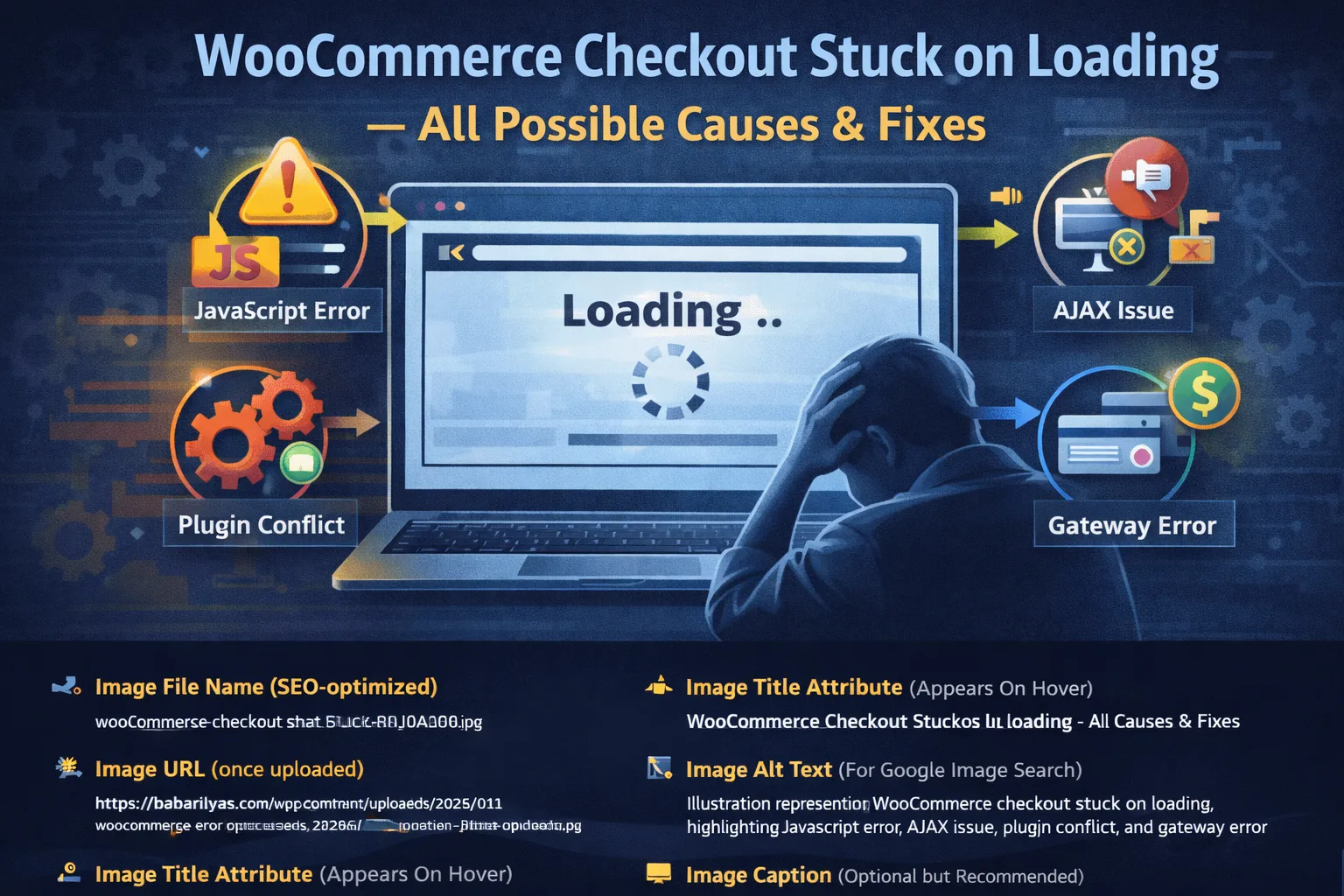
A WooCommerce checkout is usually stuck on loading due to JavaScript errors, plugin conflicts, broken AJAX requests, or payment gateway issues. If the checkout AJAX request fails or never returns a response, the loading spinner continues indefinitely.
Few things are more frustrating than a WooCommerce checkout stuck on loading. Customers click “Place Order,” the spinner keeps spinning, and nothing happens. No error message, no order created, and no clue what went wrong. This issue directly kills conversions and is one of the most common WooCommerce problems store owners face.
The reason this happens so often is simple: the WooCommerce checkout depends heavily on JavaScript, AJAX requests, REST API responses, and server-side validation. If any one piece fails, the checkout can hang indefinitely.
This guide breaks down all possible causes of a WooCommerce checkout stuck on loading and shows you how to systematically fix each one.
How the WooCommerce Checkout Actually Works
Before fixing the problem, it helps to understand what happens when a customer submits checkout.
The WooCommerce checkout:
- Validates fields with JavaScript
- Sends an AJAX request to
/?wc-ajax=checkout - Processes payment through the gateway
- Creates the order in the database
- Returns a success or error response
If the AJAX request fails, times out, or throws a JavaScript error, the checkout spinner never resolves.
External reference on WooCommerce AJAX checkout flow:
Cause 1: JavaScript Errors on the Checkout Page
This is the most common cause of a WooCommerce checkout stuck on loading.
What Happens
A JavaScript error stops execution before the AJAX request completes. WooCommerce never receives a success or failure response.
How to Detect It
- Open browser DevTools
- Go to the Console tab
- Reload the checkout page
- Look for red error messages
Common error types:
Uncaught TypeErrorBlocked by CORS policyjQuery is not definedUnexpected token
External reference on debugging JavaScript errors:
How to Fix It
- Disable all plugins except WooCommerce
- Switch to a default theme
- Re-enable plugins one by one
- Identify the plugin or script causing the error
Cause 2: Plugin Conflicts (Very Common)
Plugins that inject scripts, modify checkout fields, or add tracking often conflict with WooCommerce checkout.
Common culprits:
- Payment gateway plugins
- Cart and checkout customizers
- Security plugins
- Caching and optimization plugins
- Analytics or tracking scripts
This issue often appears after installing or updating a plugin.
External reference on plugin conflicts in WooCommerce:
Cause 3: Broken or Missing AJAX Endpoints
WooCommerce checkout relies on the wc-ajax endpoint. If this endpoint is blocked or returning an error, checkout will hang.
How to Test
Open this URL in your browser (replace domain):
https://yourstore.com/?wc-ajax=checkoutYou should receive a JSON response, not a 404 or 403.
Common Reasons It Breaks
- Incorrect permalinks
- Security rules blocking requests
- Hosting firewall restrictions
- REST API disabled
External reference on WooCommerce REST and AJAX:
Cause 4: Theme or Checkout Template Overrides
Many themes override WooCommerce checkout templates. If these templates are outdated, they can break checkout behavior.
How to Check
In WordPress admin:
- Go to WooCommerce → Status
- Look under Templates
- Check for “outdated” template warnings
External reference on WooCommerce template overrides:
Fix
- Update the theme
- Remove custom overrides if unnecessary
- Replace outdated templates with current versions
Cause 5: Payment Gateway Issues
Payment gateways are deeply tied into checkout logic.
Common gateway-related causes:
- Invalid API keys
- Incorrect webhook URLs
- JavaScript errors from gateway scripts
- SSL misconfiguration
Gateways frequently associated with infinite loading:
- Stripe
- PayPal
- Klarna
- Square
Cause 6: SSL or Mixed Content Errors
WooCommerce checkout must run over HTTPS. Mixed content errors can silently break checkout JavaScript.
How to Detect
- Open DevTools → Console
- Look for “Mixed Content” warnings
Fix
- Force HTTPS site-wide
- Update site URL in WordPress settings
- Replace hardcoded HTTP assets
External reference on mixed content issues:
Cause 7: Caching and Optimization Plugins
Aggressive caching or JavaScript optimization can break checkout.
Common mistakes:
- Minifying checkout scripts
- Delaying AJAX scripts
- Caching checkout pages
- Combining WooCommerce scripts
Checkout pages should never be cached.
This pairs well with general WooCommerce optimization guidance here:
Cause 8: Hosting or Server-Level Issues
If everything looks correct on the front end, the issue may be server-side.
Possible server problems:
- Low PHP memory limit
- Outdated PHP version
- REST API blocked by firewall
- ModSecurity rules blocking requests
WooCommerce recommends modern PHP versions and proper memory limits.
External reference on WooCommerce server requirements:
Cause 9: Block-Based Checkout Conflicts
If you are using the WooCommerce Blocks checkout, some plugins and themes are not fully compatible yet.
Try switching between:
- Block-based checkout
- Classic shortcode checkout
This often immediately identifies compatibility issues.
Step-by-Step Debugging Checklist
If your WooCommerce checkout is stuck on loading, follow this order:
- Check browser console for JS errors
- Disable all plugins except WooCommerce
- Switch to a default theme
- Test AJAX endpoint
- Verify SSL and mixed content
- Test payment gateway credentials
- Disable caching and script optimization
- Check WooCommerce Status for errors
Do not skip steps. Guessing wastes time.
When You Need Developer-Level Help
If checkout is still stuck after following all fixes, the issue is likely:
- Custom code related
- Server configuration related
- Deep plugin conflict
At that point, a developer audit saves more money than trial-and-error debugging.