The blank white screen in WordPress is usually caused by PHP errors, memory exhaustion, plugin conflicts, or theme issues that prevent the site from loading properly.
Your Website Just Went Blank… Now What?
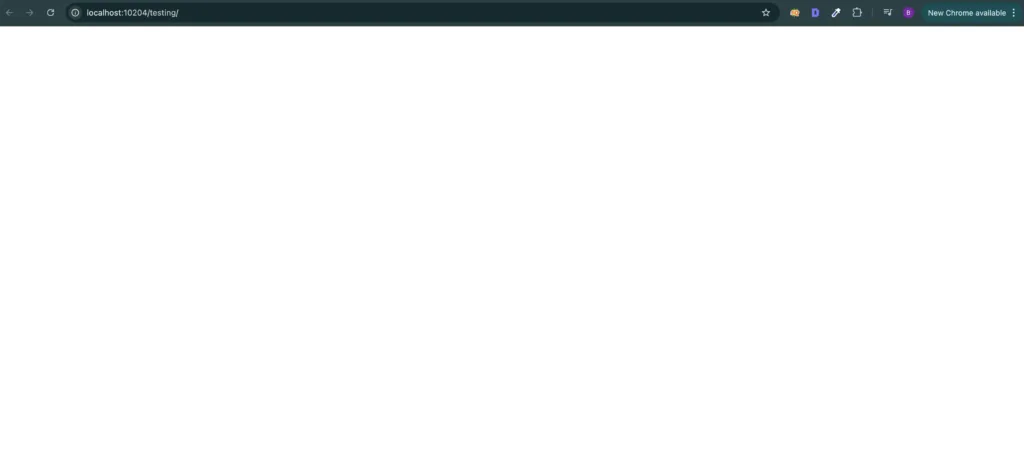
You open your website expecting your homepage…
…but instead, you get a completely blank white screen.
No error.
No message.
Nothing.
At this point, most people panic.
But let’s slow it down for a second and think like a developer.
👉 This problem is commonly called the White Screen of Death in WordPress – but forget the name for now.
Let’s understand what’s actually happening.
What’s REALLY Happening Behind the Scenes
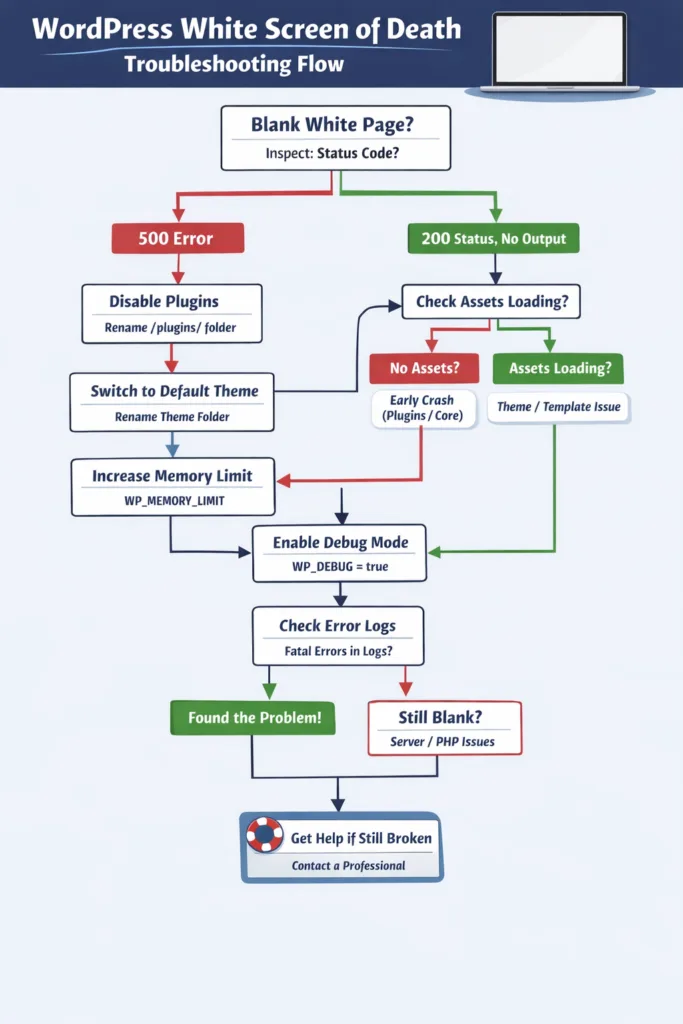
Here’s the simplest way to understand it:
Your server tried to build the page… and failed before sending anything to your browser.
That’s it.
When someone visits your site, this is what normally happens:
- WordPress starts loading (
index.php) - It loads plugins
- It loads your theme
- It generates HTML
- It sends that HTML to the browser
❌ But in your case:
Something broke during this process.
And when PHP hits a fatal error, it does this:
- Stops execution immediately
- Doesn’t complete the page
- Sends nothing to the browser
👉 Result: a blank white page
Step 1: Let’s See What the Browser Is Actually Receiving
Before touching anything, open:
👉 Right click → Inspect → Network tab → Reload page
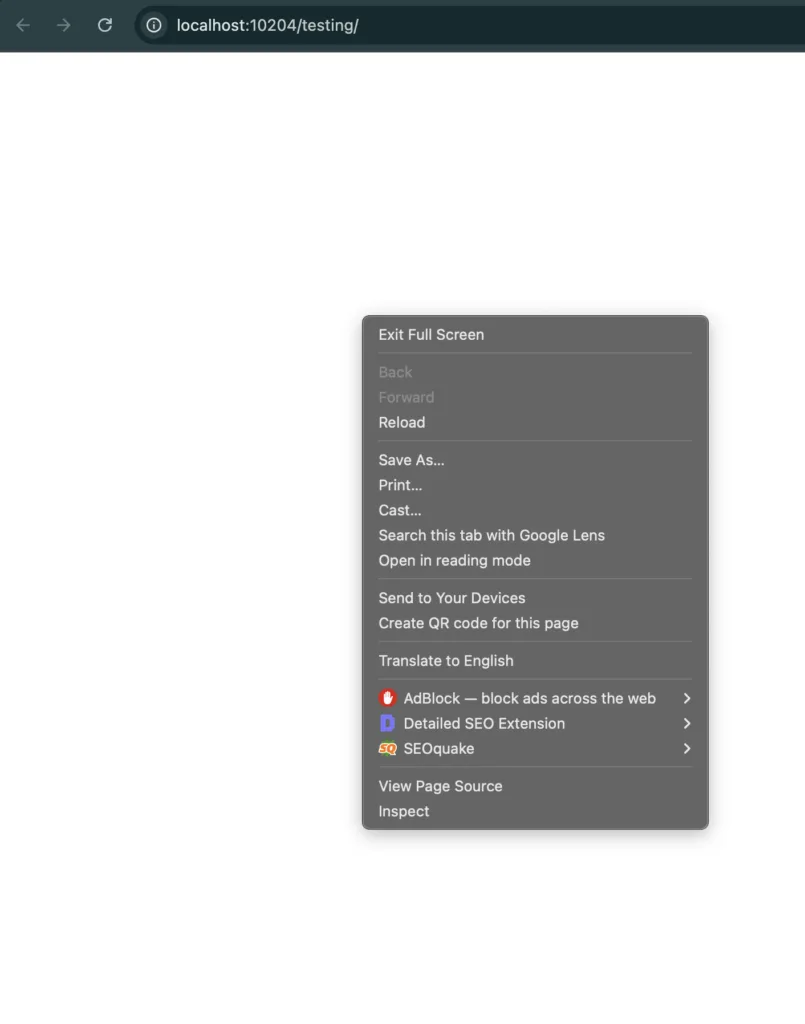
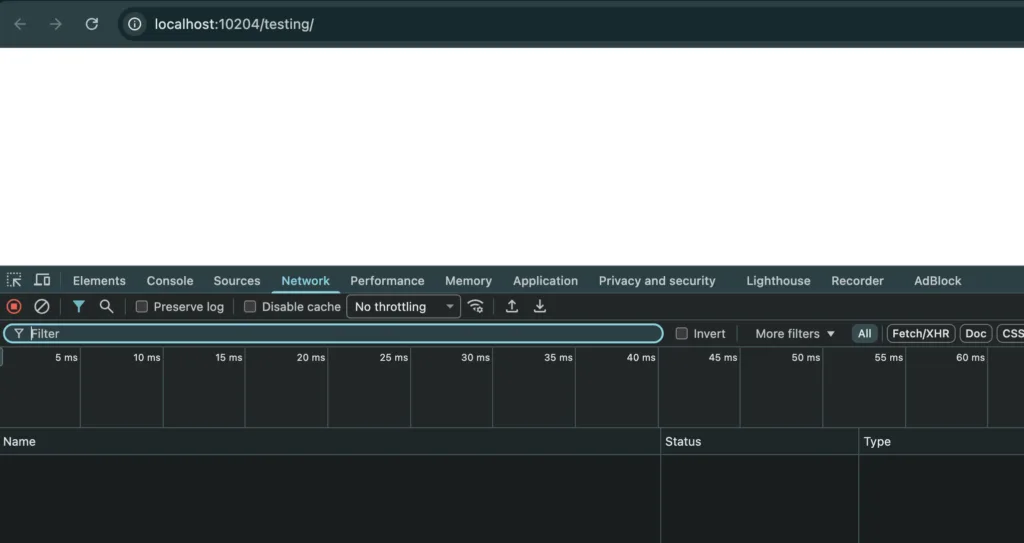
Now click the main request (your domain).
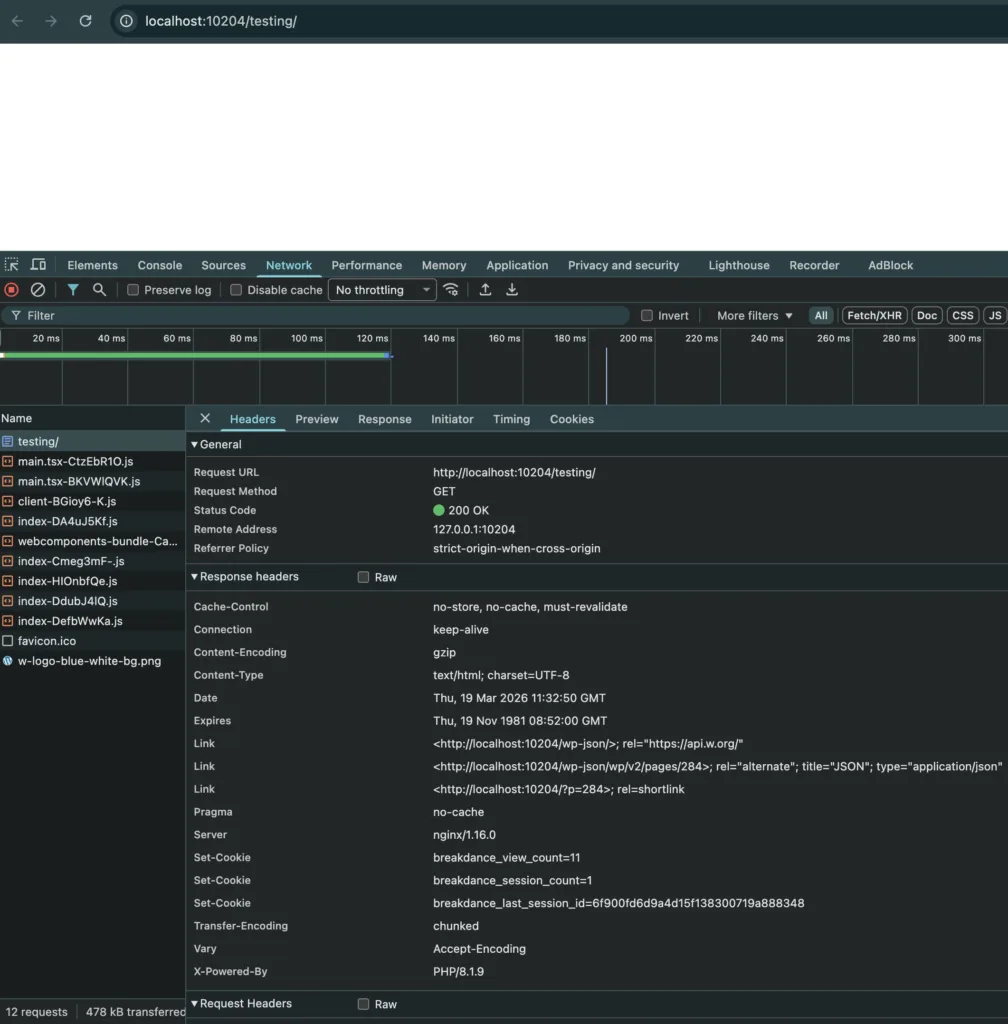
🔍 What do you see?
👉 Case 1: Status = 500
Good. This tells us:
The server crashed during execution
So now we know:
- PHP started
- Something broke mid-way
👉 Case 2: Status = 200 but empty response
Now this is interesting.
This means:
The server responded… but returned nothing
Possible reasons:
- Output buffering hiding errors
- Theme not rendering anything
- Execution stopped silently
👉 Case 3: Assets not loading (CSS/JS missing)
Now think about this:
👉 If CSS/JS files are NOT loading, that means:
WordPress likely never reached the rendering phase
So the crash happened:
- Very early
- Probably in plugins or core loading
👉 Case 4: Assets ARE loading but page is blank
Now this flips the situation.
👉 This means:
- WordPress loaded successfully
- Theme started rendering
- But content is missing
Now you’re thinking:
- Template issue
- Broken loop
- Logic bug
Step 2: Let’s Narrow Down Where It’s Breaking
Now we start eliminating possibilities — like a real dev.
🧩 First Possibility: Plugin Conflict
Plugins load early in WordPress.
So if something breaks here, the whole site goes down.
What we do:
Go to: (you can use file manager plugin if your website is on a server)
/wp-content/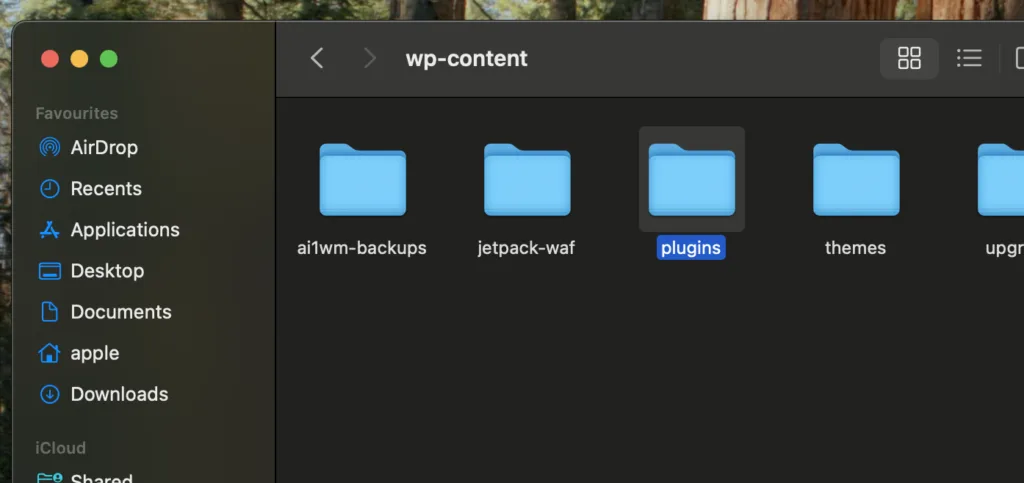
Rename:
plugins → plugins-old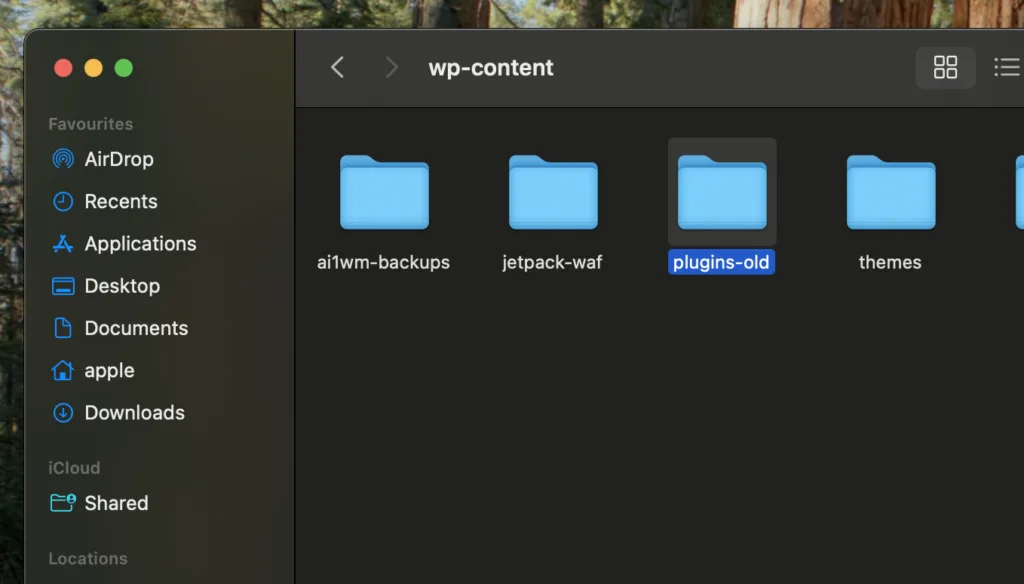
What just happened?
You just disabled ALL plugins instantly.
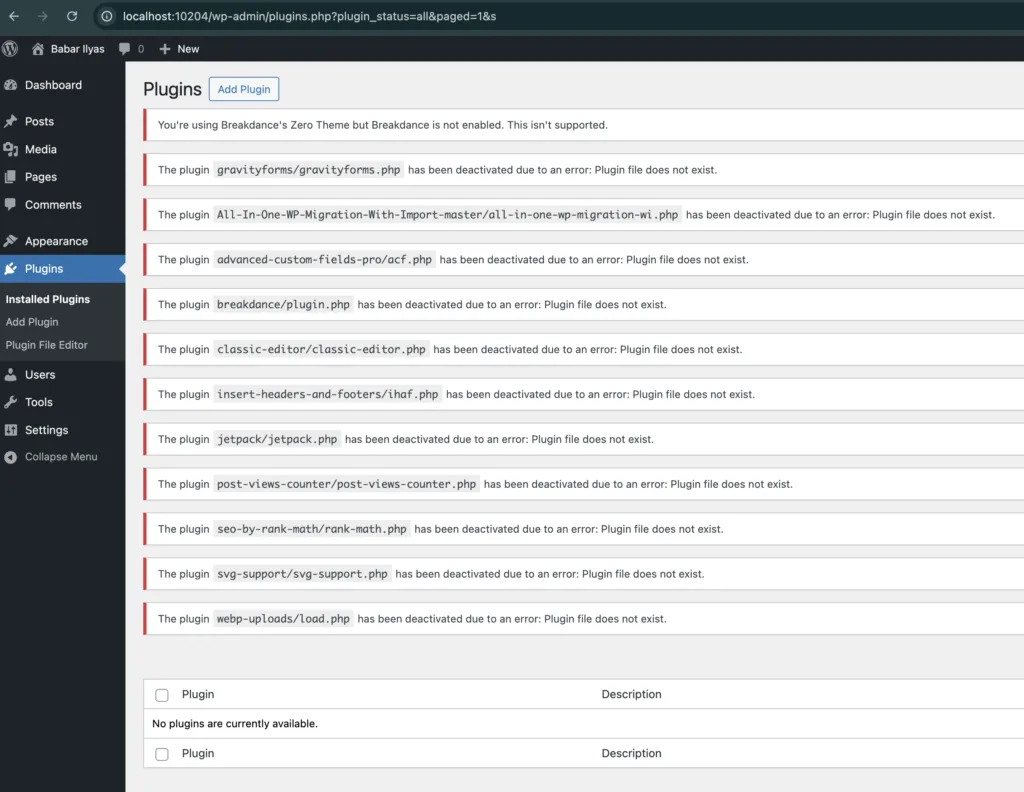
Now reload your site.
✅ If site works now:
Boom. You found it.
👉 One of your plugins was crashing PHP
Now:
- Rename folder back
- Enable plugins one by one
❌ If nothing changed:
Good.
👉 That means:
The issue is NOT in plugin execution phase
We move forward.
Step 3: Now Let’s Check the Theme
Themes handle rendering.
If the crash happens here, WordPress loads… but output breaks.
What we do:
Go to:
WordPress Dashboard → Appearance → Themes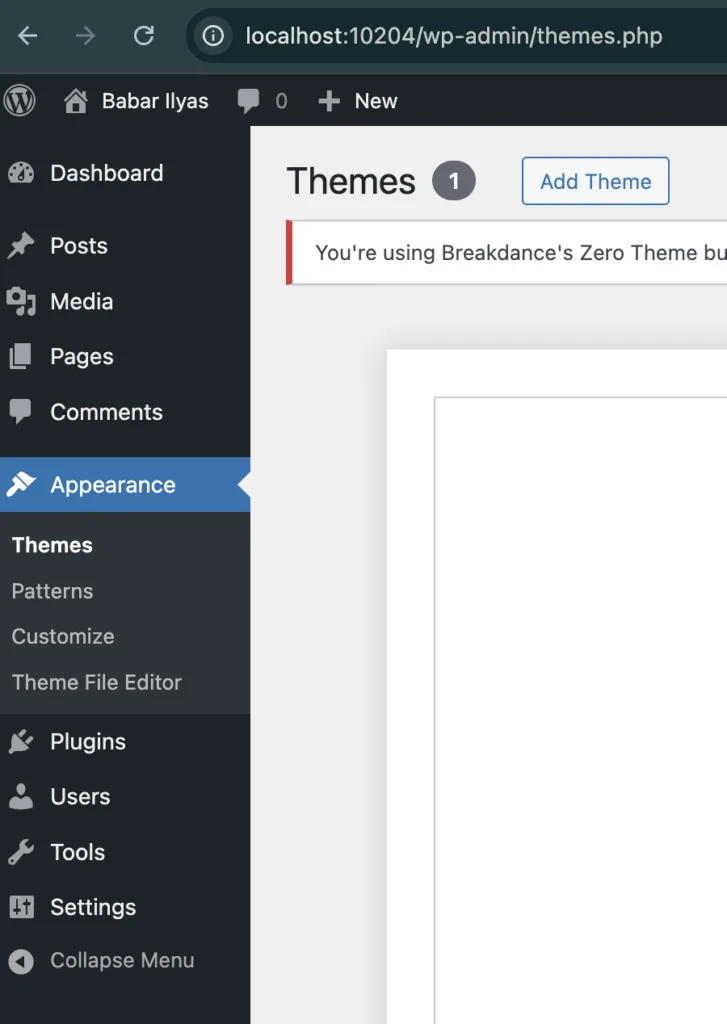
and now change the theme to Twenty Twenty Five Theme (Default Theme)
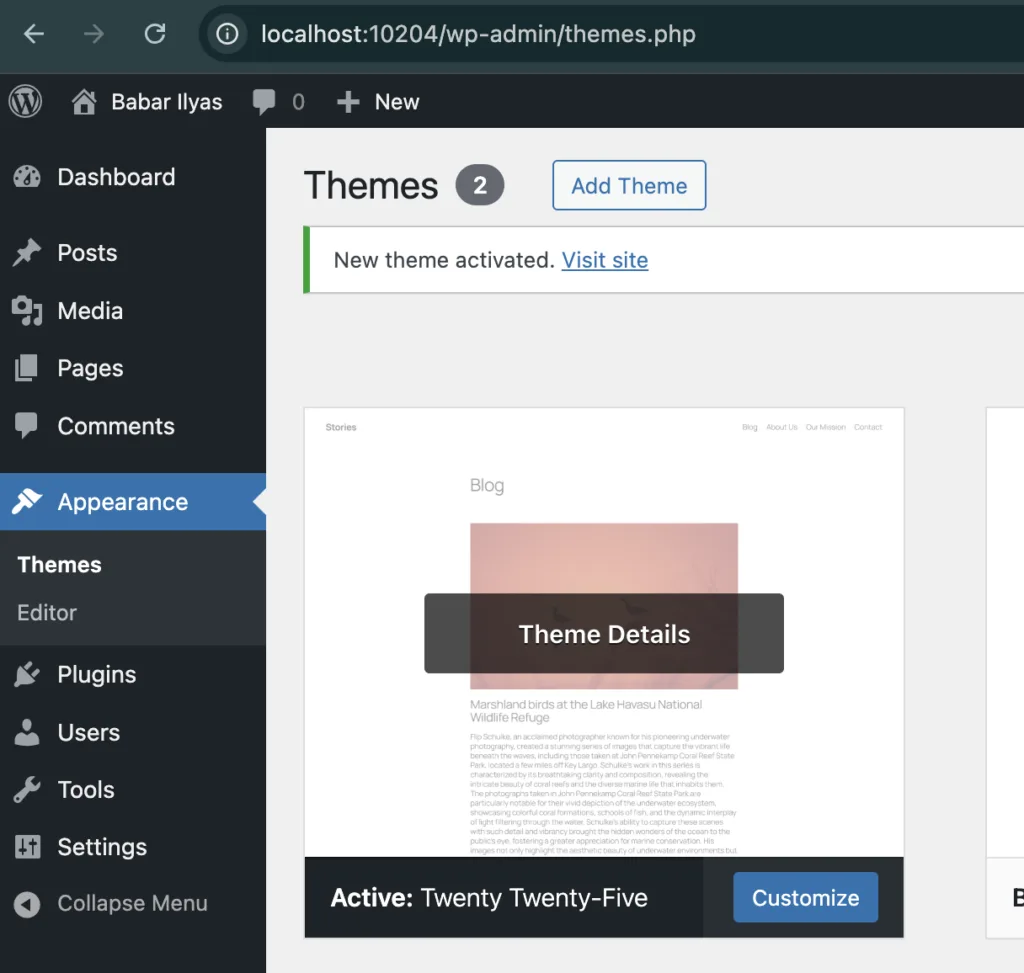
or Go to:
/wp-content/themes/Rename your active theme. (maybe add —debugging at the end of the folder name)
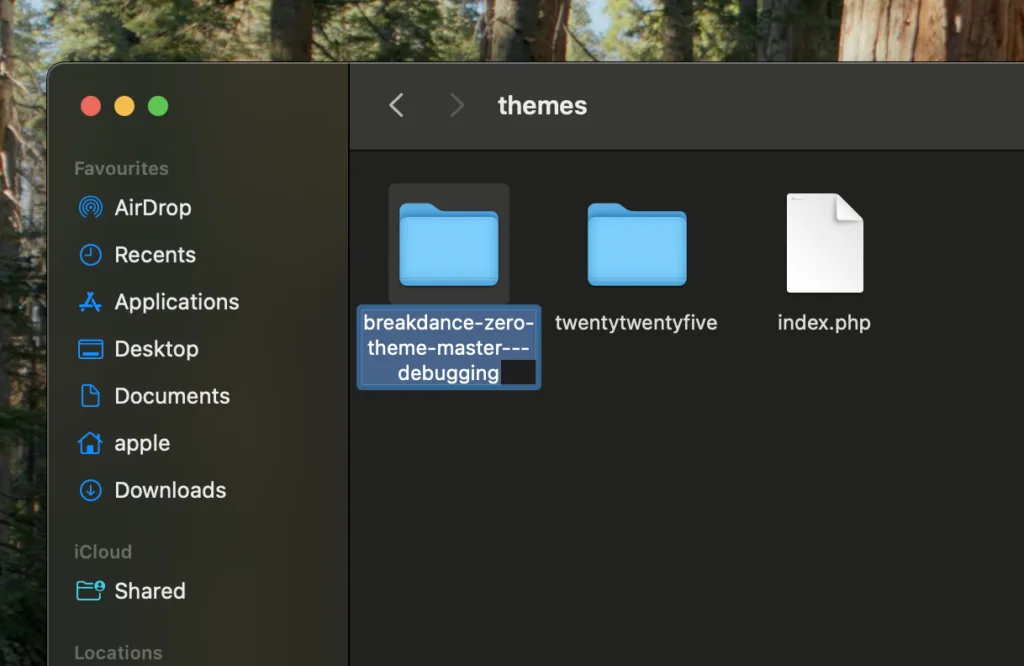
What happens now?
WordPress falls back to a default theme.
Reload the site.
✅ If it works now:
👉 Your theme is the problem
Most likely:
- Broken
functions.php - Missing file
- Bad customization
❌ Still blank?
Perfect.
Now we know:
It’s not plugins. Not theme.
We go deeper.
Step 4: Now Let’s Think About Memory
Sometimes PHP doesn’t crash because of bad code…
…it crashes because it runs out of memory.
What we do:
Open wp-config.php (this file lives in the root of your wordpress installation) and add:
define('WP_MEMORY_LIMIT', '256M');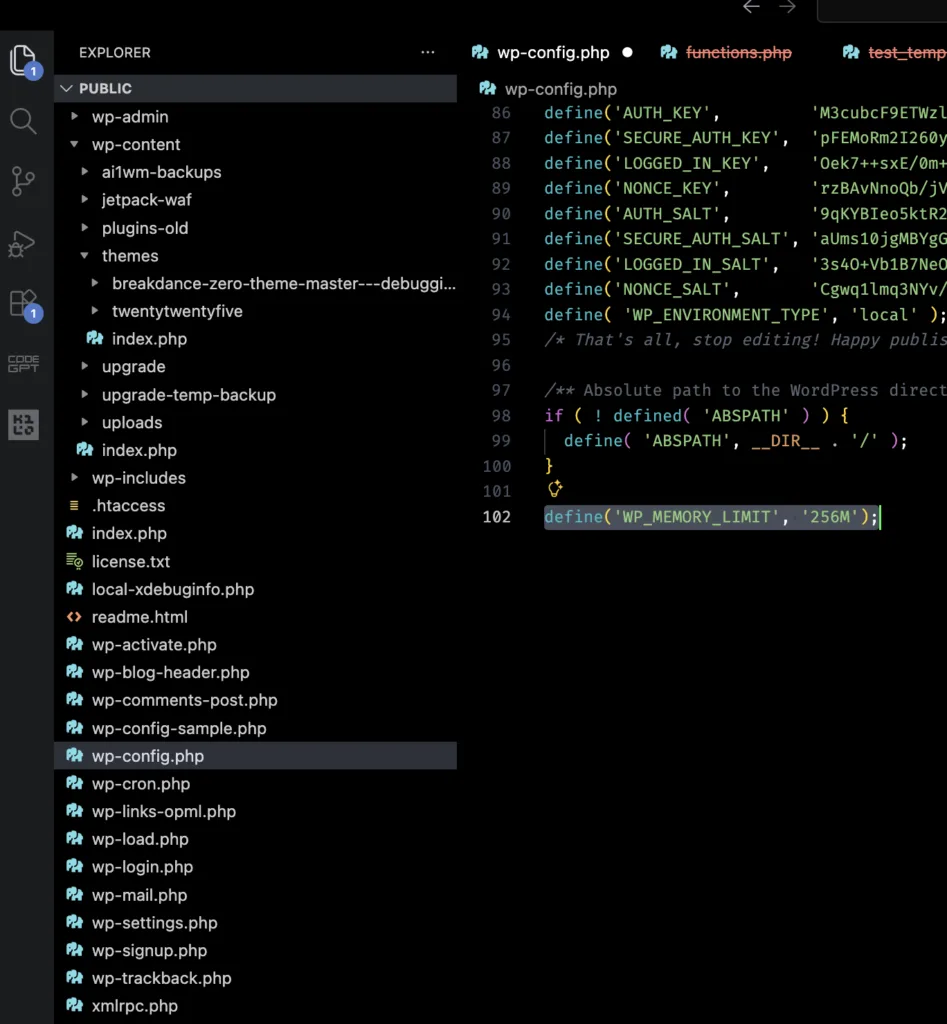
or there is a plugin to increase the memory limit, you can go ahead and install that one and use it, if that sounds more feasible option to you.
Why this matters?
If memory is exhausted:
- PHP stops execution
- Doesn’t send output
- You see blank page
Step 5: Now Let’s FORCE WordPress to Tell Us the Truth
Right now, errors are hidden.
Let’s expose them.
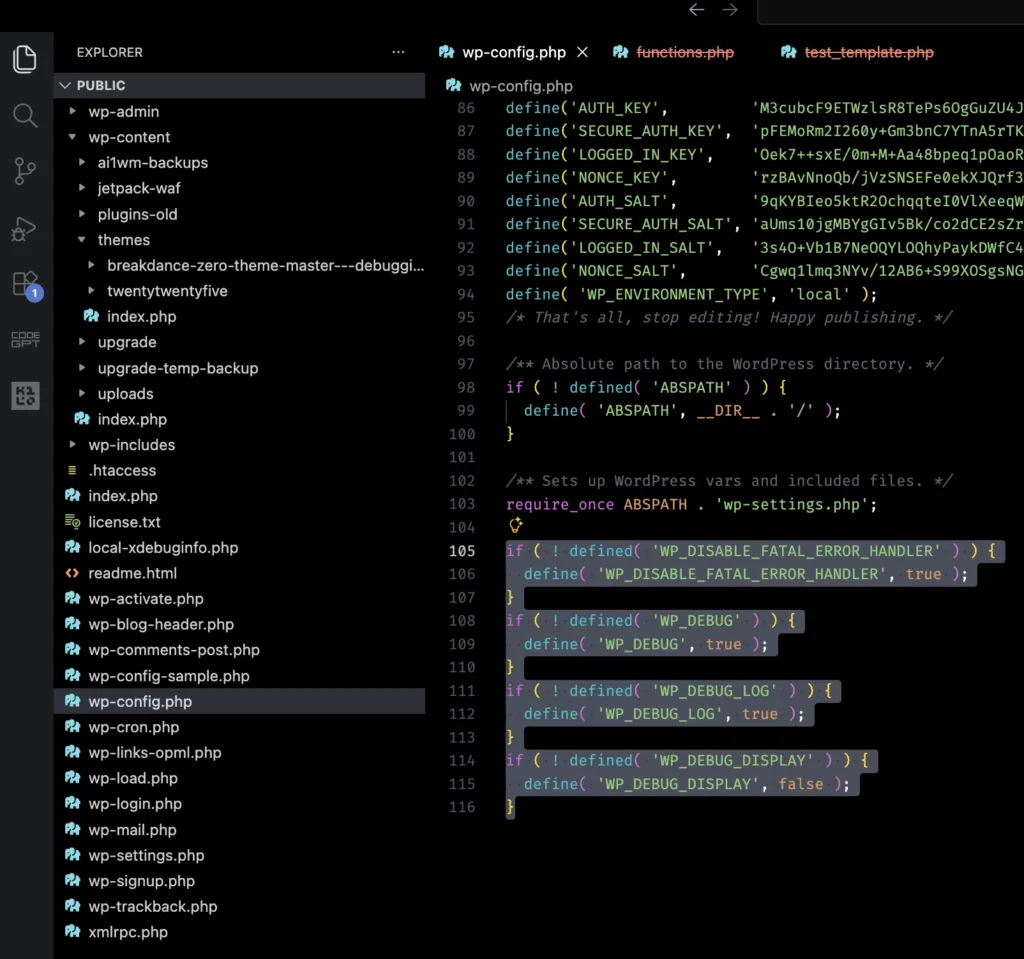
Add this in wp-config.php:
if ( ! defined( 'WP_DISABLE_FATAL_ERROR_HANDLER' ) ) {
  define( 'WP_DISABLE_FATAL_ERROR_HANDLER', true );
}
if ( ! defined( 'WP_DEBUG' ) ) {
  define( 'WP_DEBUG', true );
}
if ( ! defined( 'WP_DEBUG_LOG' ) ) {
  define( 'WP_DEBUG_LOG', true );
}
if ( ! defined( 'WP_DEBUG_DISPLAY' ) ) {
  define( 'WP_DEBUG_DISPLAY', false );
}
Reload your site.
What just happened?
Now instead of silence…
👉 WordPress will SHOW the actual error
Like:
- Undefined function
- Fatal error
- Missing class
If still nothing shows?
That tells us something important:
The error is happening in a way that’s still being suppressed
Now we go to logs.
Step 6: Logs Don’t Lie
Check:
/wp-content/debug.log- Hosting error logs
What are we looking for?
Fatal errorAllowed memory size exhaustedUncaught exception
This is where you find the real cause
Real-World Understanding (What Usually Happens)
From experience:
- Most cases → Plugin conflict
- Then → Theme issues
- Then → Memory / server limits
Important: Why You See NOTHING Instead of an Error
This confuses people the most.
Here’s why:
- WordPress has debugging turned OFF
- Server hides PHP errors
- Output buffering prevents partial output
👉 So instead of:
Fatal error on line 123You get:
(blank screen)When It’s NOT a WordPress Issue
Sometimes the issue is deeper:
- PHP version mismatch
- Server misconfiguration
- PHP-FPM crash
When You Should Stop and Ask for Help
If you’ve:
- Disabled plugins
- Switched themes
- Increased memory
- Enabled debug
…and it’s still blank
👉 Don’t waste hours guessing.
You can reach out here:
Contact me
Final Thoughts
A blank white screen feels scary…
…but it’s not random.
It’s just:
Something broke during execution — and WordPress stayed silent.
Once you understand the flow:
- Start → Load → Render → Output
👉 Debugging becomes simple.
Also Read
If your site is showing an actual error message instead, check: